Webmin & Cockpit — Web-Based Server Management on Debian 12
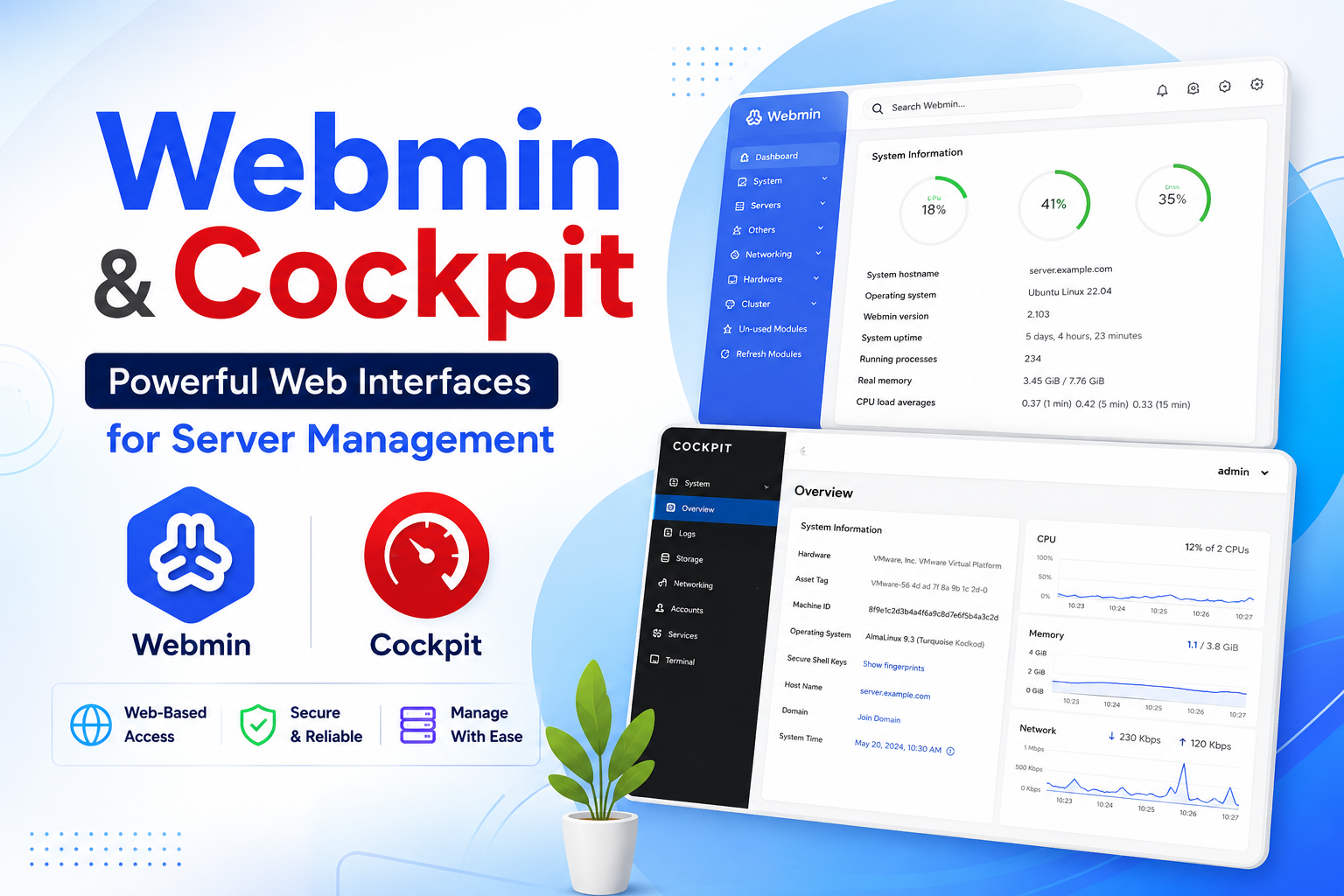
Two of the best web-based management interfaces for Linux servers — Webmin for full system control and Cockpit for a clean real-time dashboard. This guide covers installing both on Debian 12 (Bookworm).
Webmin
Webmin is a powerful web-based system administration tool that lets you manage users, packages, services, DNS, firewalls and much more from a browser.
Default port: 10000
Quick Install (Recommended)
The easiest way is using the official setup script:
1
2
3
4
5
6
7
8
# Download the official setup script
curl -o webmin-setup-repo.sh https://raw.githubusercontent.com/webmin/webmin/master/webmin-setup-repo.sh

# Add the Webmin repository
sudo sh webmin-setup-repo.sh

# Install Webmin
sudo apt install webmin --install-recommends -y
Manual Install
If you prefer to add the repository manually:
Step 1 — Update your system
1
sudo apt update && sudo apt upgrade -y
Step 2 — Install dependencies
1
sudo apt install -y software-properties-common apt-transport-https
Step 3 — Add the Webmin GPG key and repository
1
2
3
wget -qO - https://www.webmin.com/jcameron-key.asc | sudo tee /etc/apt/trusted.gpg.d/webmin.asc

sudo sh -c 'echo "deb http://download.webmin.com/download/repository sarge contrib" > /etc/apt/sources.list.d/webmin.list'
Step 4 — Install Webmin
1
2
sudo apt update
sudo apt install webmin -y
Step 5 — Allow Webmin through the firewall
1
sudo ufw allow 10000/tcp
Step 6 — Access Webmin
Open your browser and navigate to:
1
https://YOUR_SERVER_IP:10000
Log in with your root or system user credentials.
Security note: Make sure you have a strong password set. If you plan to expose Webmin to the internet, set up an SSL certificate and consider placing it behind a reverse proxy.
Cockpit
Cockpit is a lightweight, real-time web dashboard for monitoring and managing Linux servers. Great for a quick overview of system health, logs, services, and storage.
Default port: 9090
Install
Step 1 — Update your system
1
sudo apt update && sudo apt upgrade -y
Step 2 — Install Cockpit
1
sudo apt install cockpit -y
Step 3 — Start and enable the service
1
2
sudo systemctl start cockpit
sudo systemctl enable cockpit
Step 4 — Allow Cockpit through the firewall
1
sudo ufw allow 9090/tcp
Step 5 — Access Cockpit
Open your browser and navigate to:
1
https://YOUR_SERVER_IP:9090
Log in with your system username and password.
Quick Reference
| Tool | Port | Best For |
|---|---|---|
| Webmin | 10000 | Full system administration |
| Cockpit | 9090 | Real-time monitoring and dashboard |